
English
SSH terminal
Opening an SSH connection creates a terminal tab. Full-screen programs such as vim and top work as usual, and resizing the window resizes the server's terminal.
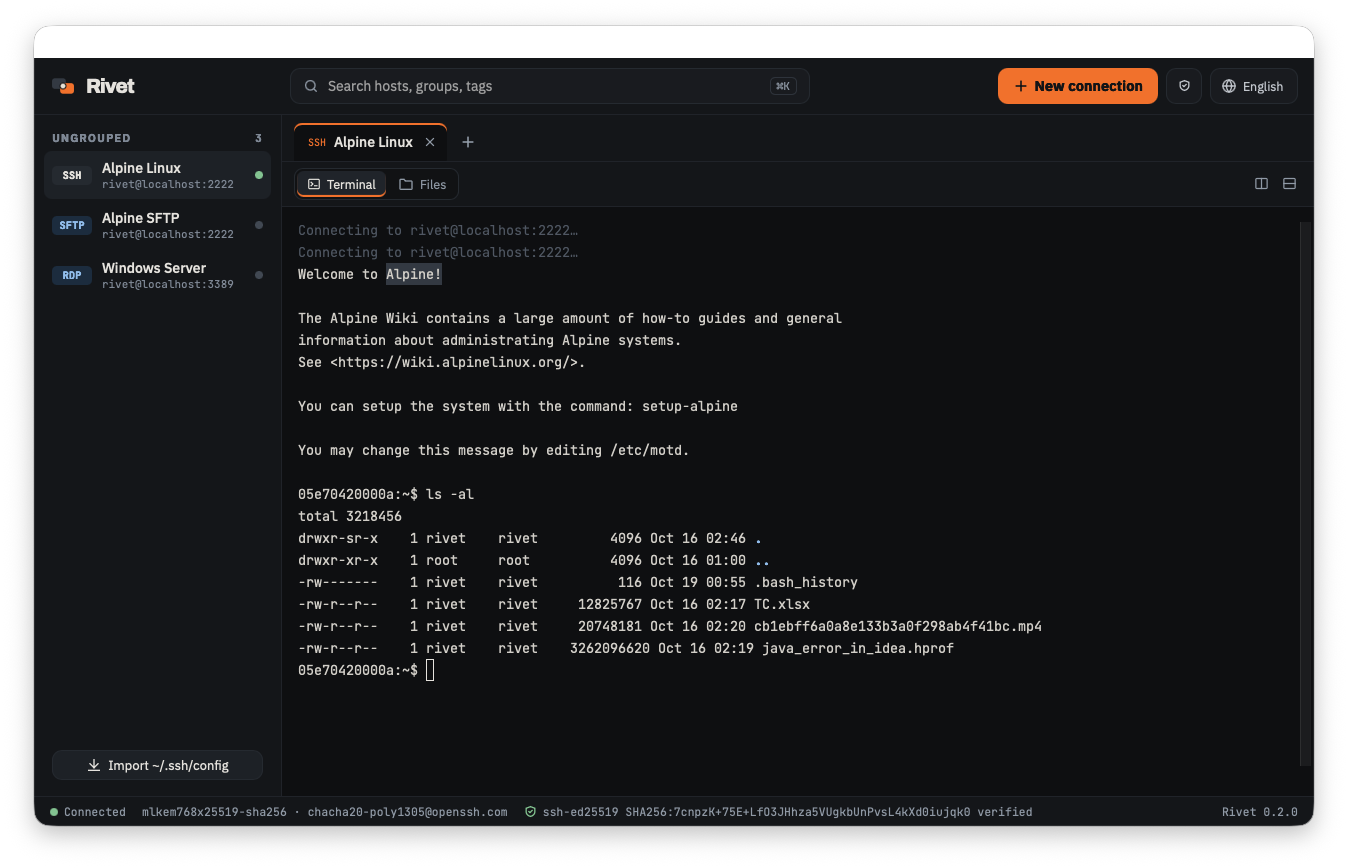
Tabs
Each connection opens in a new tab. ⌘W closes the tab; if a dialog is open, it closes the dialog first.
Choose Files in the tab's View switch to use file transfer over the same SSH connection, without signing in again.
Split panes
SSH terminal tabs can be split left/right or top/bottom, and panes can be split again. A new pane opens a new SSH session with the same connection settings.
| Action | macOS | Windows |
|---|---|---|
| Split right | ⌘D | Alt+Shift+= |
| Split down | ⇧⌘D | Alt+Shift+- |
| Move to the next pane | ⌥⌘ + arrow keys | Alt + arrow keys |
| Close pane (ends only that session) | ⌘W | Ctrl+Shift+W |
- Drag an SSH connection from the sidebar onto a terminal to split toward that side and open the connection there.
- Drag a divider to resize; double-click it to split evenly.
- The status bar shows the connection of the focused pane.
- Splitting or closing a pane does not disconnect the other panes.
- SFTP, FTP and RDP tabs cannot be split.
Status bar
The status bar always shows the security state of the current connection:
- Key exchange and cipher
- Host key algorithm and fingerprint, matched against known_hosts
viawhen connected through a jump host
Reconnect
When a connection drops, a Reconnect button appears below the terminal, along with the exit code if there is one.